Quicdesk——High performance remote desktop!


QUICDESK PC App V1.1.0 — Quick Start Guide
1. Overview
QUICDESK is a low-latency, high-quality remote streaming tool. It uses optimized encode/decode and NAT traversal to deliver low-latency video across platforms for gaming and productivity scenarios.
2. How to use QUICDESK on PC
1. Register and sign in
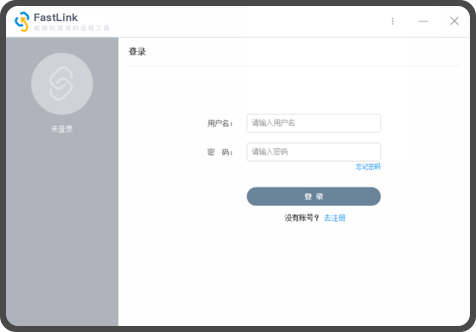
Download and install the Windows client from https://quicdesk.com. On the login screen, choose “Register”.
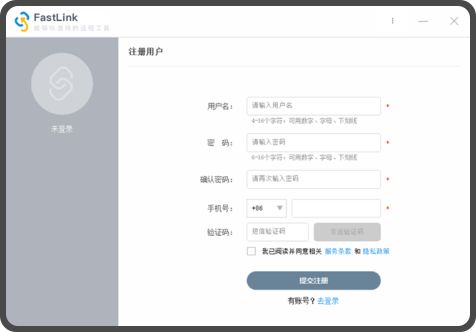
Enter your username and password, then bind your phone number.
2. Sign in and start remote control
Run QUICDESK.exe on both the host (controlled) device and the client (controller) device. Sign in with the username/password you created in step 1.
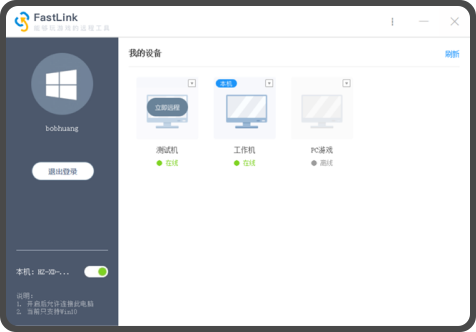
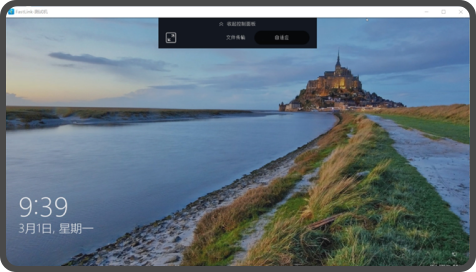
After signing in, you’ll see a device list. Hover the target device and click “Connect now” to start remote control.
Host device
QUICDESK Mobile App V1.1.0 — Quick Start Guide
1. Overview
QUICDESK is a low-latency, high-quality remote streaming tool. It uses optimized encode/decode and NAT traversal to deliver low-latency video across platforms for gaming and productivity. The mobile app is designed to take advantage of modern high-speed networks.
2. How to use QUICDESK on Mobile
1. Register and sign in
Download and install the Windows client from https://quicdesk.com. On the login screen, choose “Register”.
Enter your username and password, then bind your phone number.
2. Install the mobile app
Download the installer package (e.g., QUICDESK_android.apk) from https://quicdesk.com. Install it, grant the required permissions, open the app, then sign in with the username/password you created in step 1.
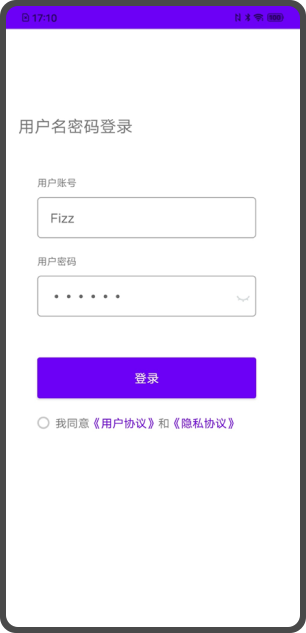
3. Start remote control
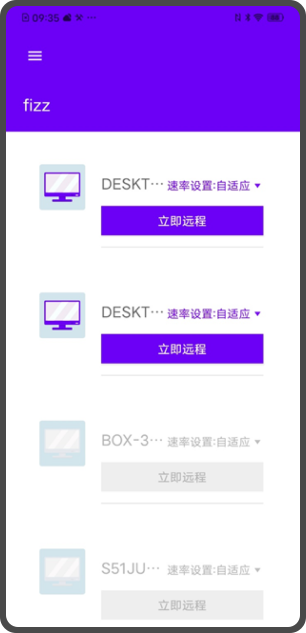
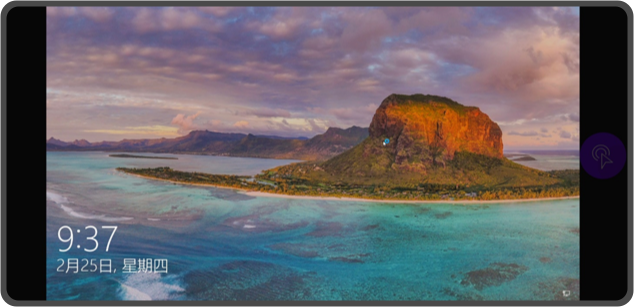
On the home screen, select the device you want to connect to and click “Connect now”. Wait while it connects; once connected, you’ll see the remote desktop.
On your first login, you’ll see an onboarding tip overlay.
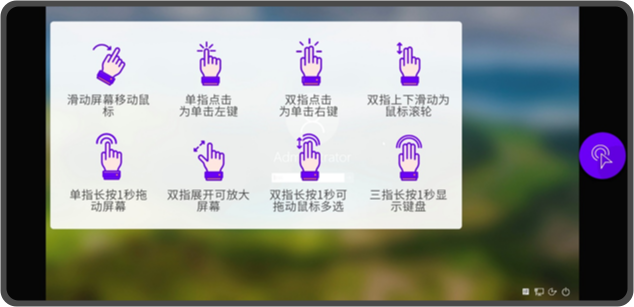
4. Sign out
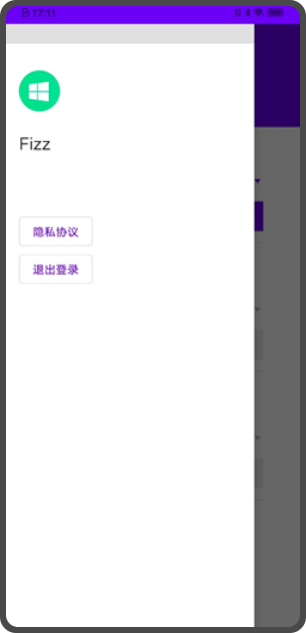
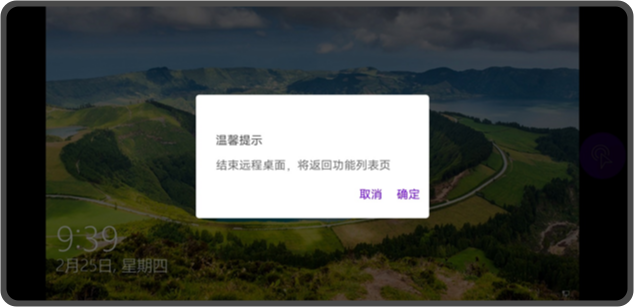
Tap the menu button in the top-left to open user info and privacy links, then tap “Sign out” and confirm.
- Q1:How do I enter/exit remote fullscreen?
Use the shortcut: Win + Z
- Q2:Why can’t I bind the host device?
To bind a host device, please ensure:
The host GPU is supported (NVIDIA 960+ / Intel / AMD) and graphics drivers are up to date.
If it still fails, update your graphics driver to the latest version and try again.
- Q3:Which platforms are supported?
QUICDESK currently supports Windows / Linux / Android. macOS is not supported yet.
- Q4:How do I share my host device for remote assistance?
On the home page go to Remote Assistance: you can share either the device ID + verification code, or the browser link. Your friend can control your host by entering the ID + code, or opening the shared link.
- Q5:No sound on the host PC after installing QUICDESK?
On Windows: Control Panel → Sound → Playback. Right-click and set a non-“Shunwang Virtual Audio Device” speaker as the default playback device.
- Q6:SWVir driver not installed: cursor shape is missing but actions still work?
Try plugging a physical mouse into the host machine. We will continue improving this behavior in future versions.
- Q7:Windows installer notes
During installation, Windows may show several prompts. Choose “Always install/Allow” each time; otherwise keyboard/mouse/audio features may not work during remote control.
- Q8:Popup: “Failed to get device serial number, please exit and retry”
Open Task Manager → Services, find QUICDESKSvr, and restart it.
- Q9:Why do I often see “File is in use and cannot be deleted” after using QUICDESK?
This was a known issue in older versions related to copy/paste. Please update to the latest QUICDESK.
- Q10:I forgot my username. Can I change it?
Changing username is not supported at the moment. You can use “Forgot password” to view your current username on the password reset page.
- Q12:Can I use QUICDESK in a LAN without Internet access?
No. The QUICDESK account system requires Internet access.
- Q1:Why can’t I reach 60 FPS?
To reach 60 FPS, these conditions usually need to be met:
1. Direct connection
2. Hardware encoding
3. Hardware decoding
4. The host screen has enough motion (low-motion scenes may appear lower FPS)
If any condition is not met, you may not reach 60 FPS. On Windows you can check “direct / hw encode / hw decode” in the remote session title bar. On Android you can currently only check whether it is direct.
- Q2:What is the difference between relay and direct connection?
Relay means data between host and client is forwarded through QUICDESK servers.
Direct means host and client exchange data directly without going through QUICDESK servers.
- Q3:My session shows “relay”. How can I get a direct connection?
Relay vs direct depends on the network conditions of both host and client. Any of the following can enable direct connection:
1. Enable IPv6 on both host and client
2. If either side has a public IP: enable UPNP / NAT-PMP / PCP on that side’s router
3. If either side has a public IP: configure UDP port forwarding on that side’s router, and set the matching port mapping in QUICDESK settings
- Q4:How do I configure port mapping?
Set a UDP port in the app, then configure the same UDP port (or port range) forwarding on your router.
- Q5:I have a public IP and set port mapping, but it still uses relay. Why?
1. Confirm your router actually has a public IP (not a private IP assigned by an upstream modem/router).
2. Confirm the router port mapping matches your QUICDESK settings.
3. Confirm UDP is allowed in the router rules/firewall.
- Q6:I don’t have a public IP. Can I use a tunneling/VPN tool to get direct connection?
If you are using a virtual LAN / VPN solution, it may work in theory. The resulting quality depends on the network provided by that tool; QUICDESK cannot guarantee image quality or smoothness.
- Q7:My session shows software encoding. How do I switch to hardware encoding?
Hardware encoding depends on your GPU/driver and system capability. Update your graphics driver and ensure your GPU supports hardware encoding.
- Q1:What does “streaming” mean in QUICDESK?
In this context, “streaming” refers to remote control/remote desktop streaming.
- Q2:What should I do if I occasionally get a blue screen (BSOD)?
This may be caused by a driver conflict. You can try disabling QUICDESK drivers one by one:
1. Right-click This PC → Manage → Device Manager → Sound, video and game controllers → ShunWang Virtual Audio Device → Disable
2. Right-click This PC → Manage → Device Manager → System devices → SWVir Enumerator → Disable
- Q3:Where can I find BSOD dump logs?
You can find dump files under: C:\Windows\Minidump
- Q4:BSOD code: PAGE FAULT IN NONPAGED AREA
Possible cause: incompatible third-party drivers (known examples include Peckp.sys, ccinputprotect.sys, or CCInputProtect_x64.sys).
Fix: uninstall the conflicting driver or use an OS/environment where it is compatible.
- Q5:My device is online, but it shows offline. Why?
Open Task Manager → Services, find QUICDESKSvr, and restart it.